GRUPETAPP · CYCLIST GUIDE
User manual
From your first access to saving a bike ride. Follow the steps for each task and use the index to come back when you need to adjust something.
Screenshots are of the real PWA in Chrome, with dummy profiles and mock locations in a local environment. They do not show data from real users or certify the behavior of sensors or native apps.
1. First access
- Download and open GrupetApp. Enter with the method available on your platform: email and password, Google or Apple. If you create an account by email, verify the code received before logging in.
- On first access, type a Display name or nickname from 2 to 80 characters and press Save and continue. This step is mandatory and you can modify it later in Profile.
- When you start a bike ride, grant the location permission requested by the device. The app shows the GPS status while waiting for the first point.
If you forgot your password, use I forgot my password on the sign-in screen. Install the iOS or Android app from the download page.
2. Browse the app
The bottom bar leads to Home, Group, Solo and Profile. Home lets you choose Solo or Group. Group lets you create, join and open saved groups. Solo opens the setup for an individual ride. Profile brings together your identity, account, appearance and bike settings.
During a bike ride, tap the emblem on the header to open Main menu or Profile. Changing screens does not end the bike ride; The “Bike ride in progress” strip allows you to return. End it expressly with Finish.
3. Change name, mode and account
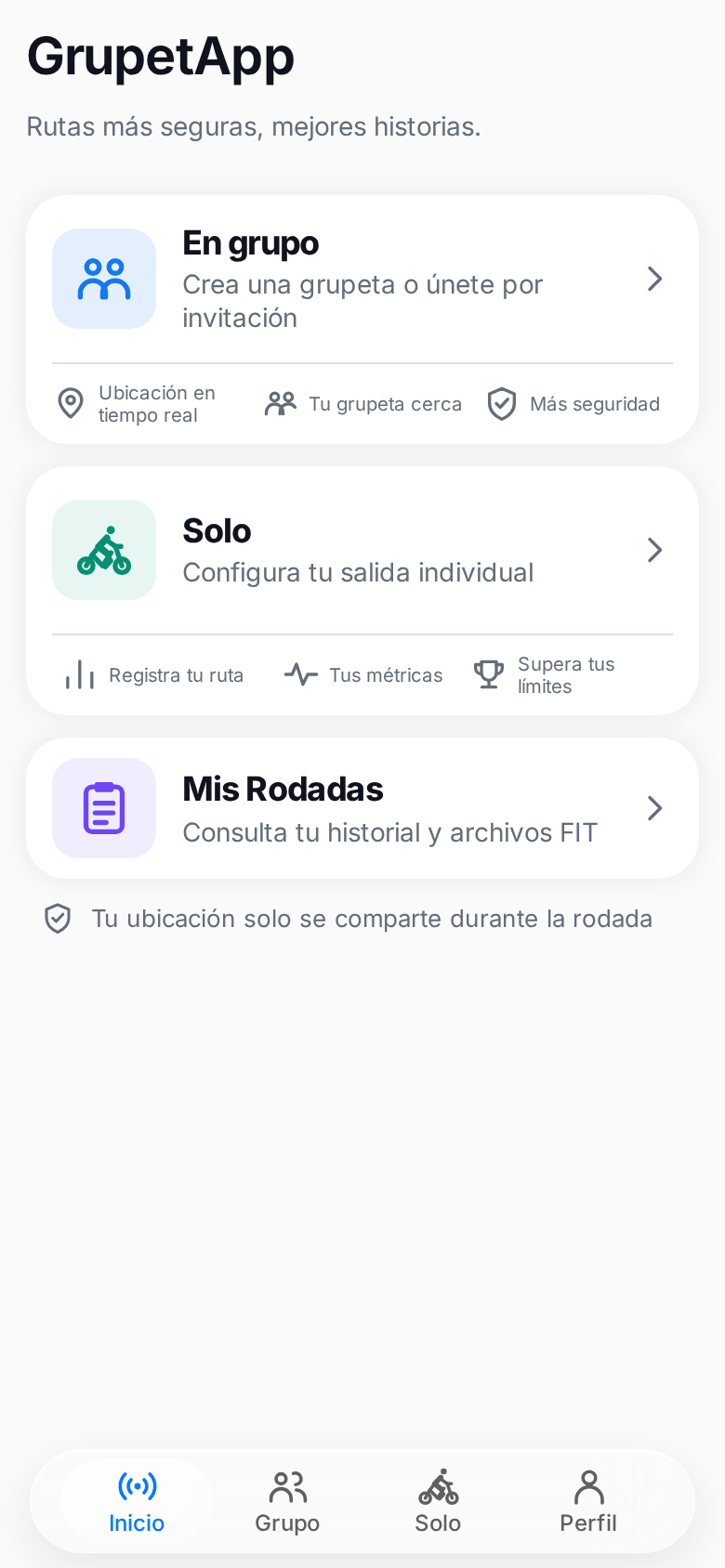
- Open Profile in the bottom bar.
- Edit Display name and choose the Modality: Route, Mountain, Gravel, Urban or Other.
- Press Save profile and wait for confirmation.
In Private data for FIT You can add weight, date of birth and sex for energy estimation. They are optional; without weight, the FIT omits that estimate. In Account You can check your email, unblock users and delete the account. The Link Apple option appears only when it is available for that account.
Your name and mode may be shown to other riders when you activate Radar; Email and private data for FIT are not part of the public profile.
4. Adjust the wheel circumference
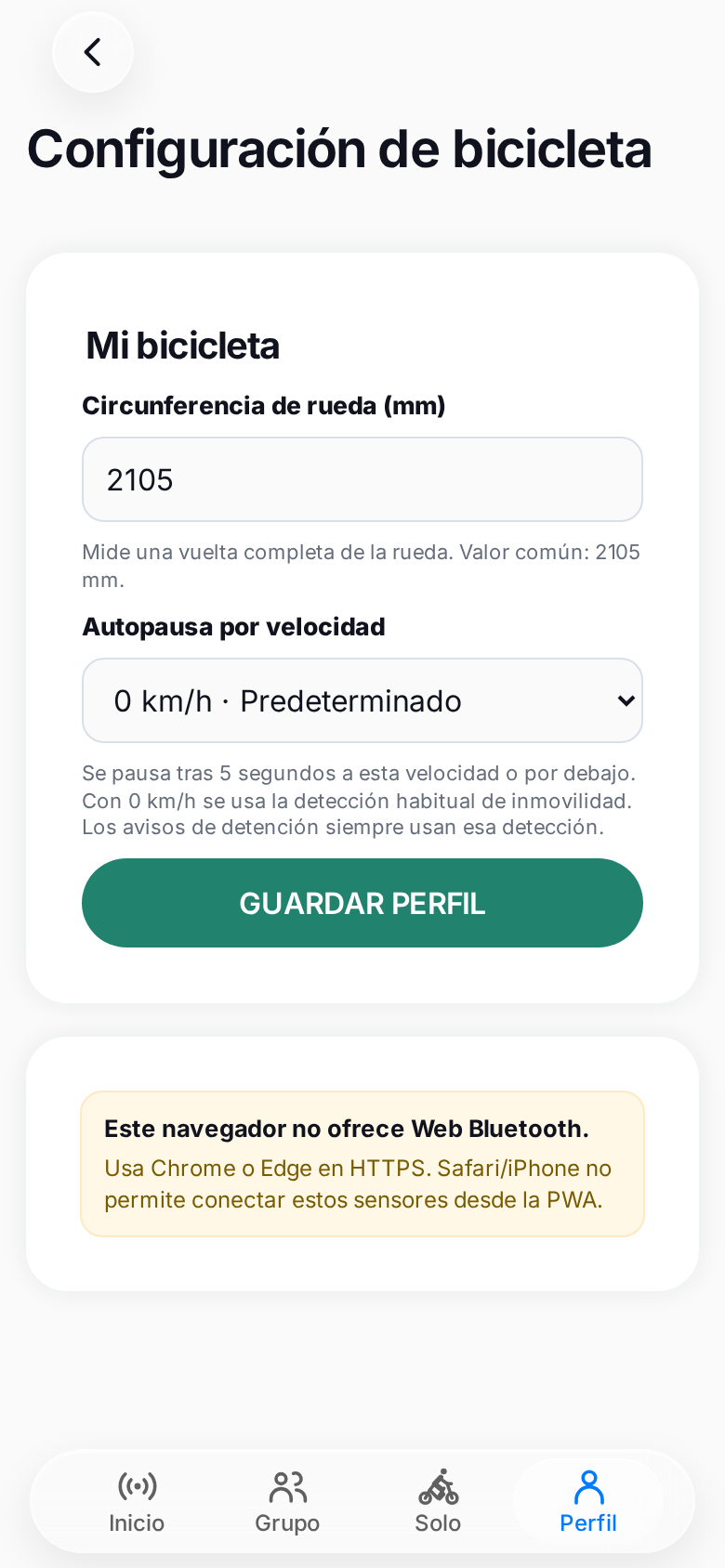
This data allows you to convert the turns of a compatible speed sensor into distance and speed. The measurement is entered in millimeters.
- Mark a point on the tire and the ground. With your weight on the bike, roll in a straight line until you complete one turn.
- Measure from the first point to the second in millimeters.
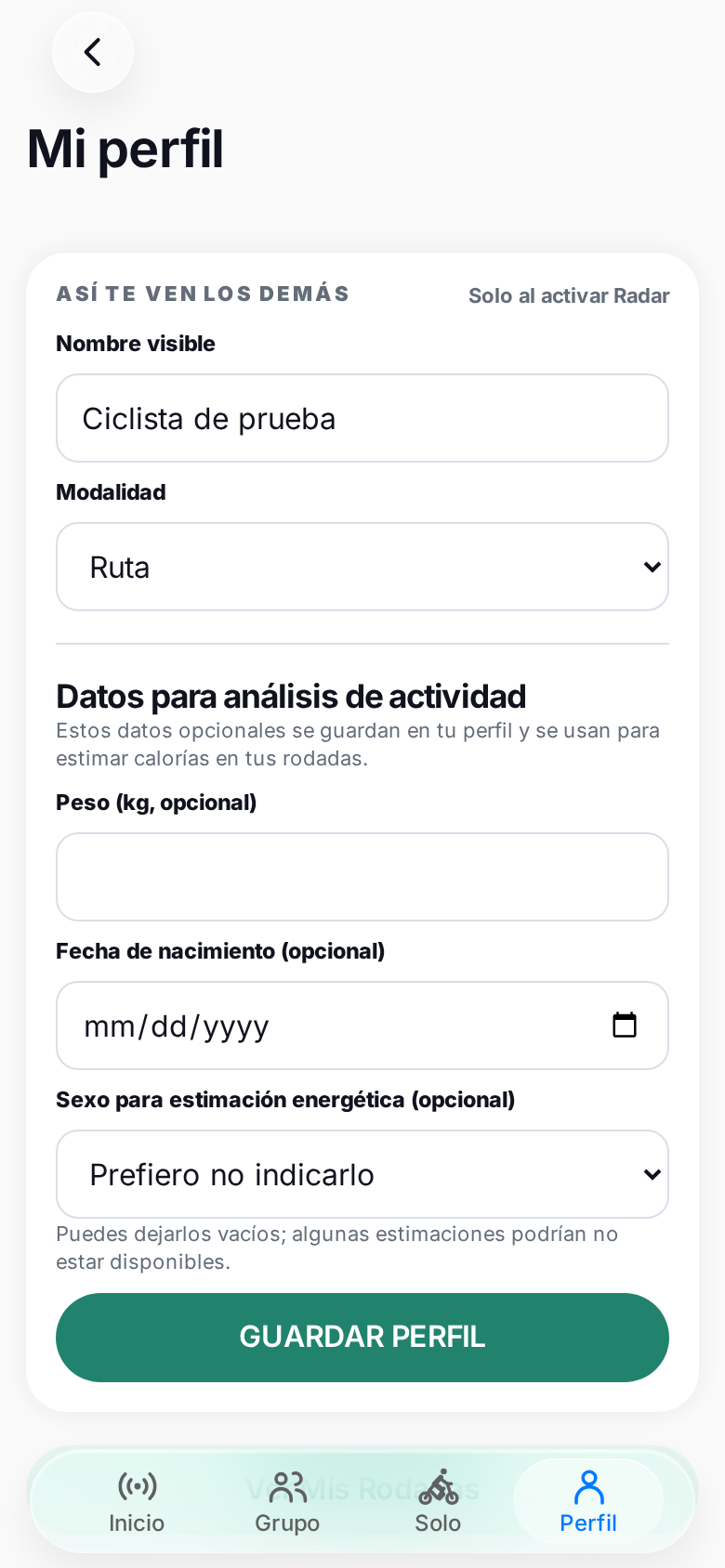
- Open Profile → Bike settings, write the value in Wheel circumference (mm) and press Save profile.
The app accepts values from 500 to 4000 mm and shows 2105 mm as a common reference. Measure your actual wheel: tire, pressure and load change the result. If you change tires, measure it again.
5. Connect Bluetooth sensors
GrupetApp reads compatible Bluetooth sensors speed/cadence and heart rate. Before you start, activate Bluetooth and wake up the sensor by turning the wheel, cranks, or putting on the band, depending on the manufacturer.
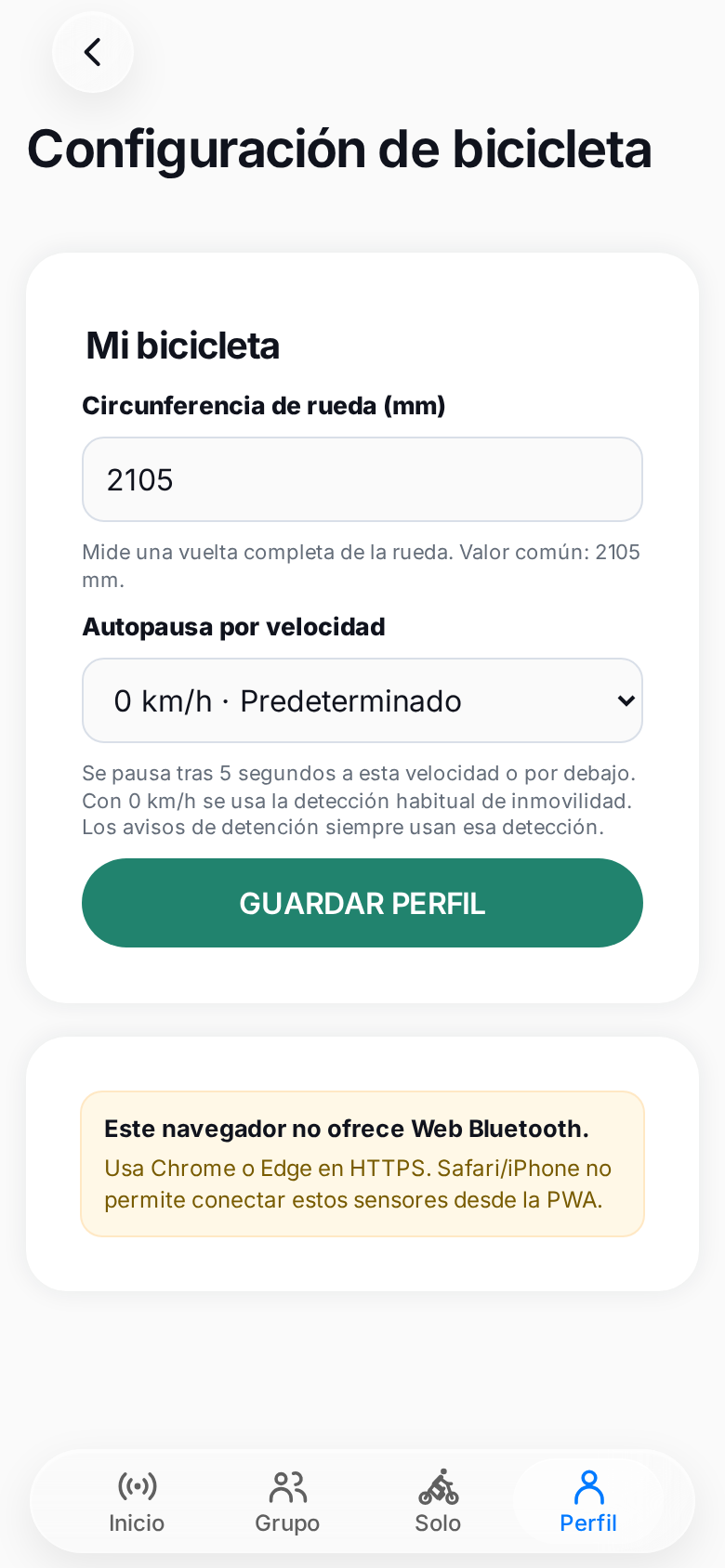
- Enter Profile → Bike settings.
- Press Connect sensor and select the device in the system selector or browser. Accept the requested permissions.
- Check that it appears as Connected and that Live values Show readings when moving. The battery percentage only appears if the sensor provides it.
Stored sensors attempt to reconnect when detected. If one is left on “Connecting” or “Saved · not connected”, tap Reconnect. Disconnect terminates the current session; forget removes it from saved sensors and you will need to select it again. The iOS and Android apps use their platform’s picker and adapter.
During the bike ride, Data touch the card Speed to choose Bluetooth (BT) or GPS. BT is the initial preference; if there is no recent BT reading, backup GPS is used and the label shows the effective source. Cadence and pulse appear when there are compatible readings.
6. Start a solo bike ride and use Radar
- In Radar, choose Solo.
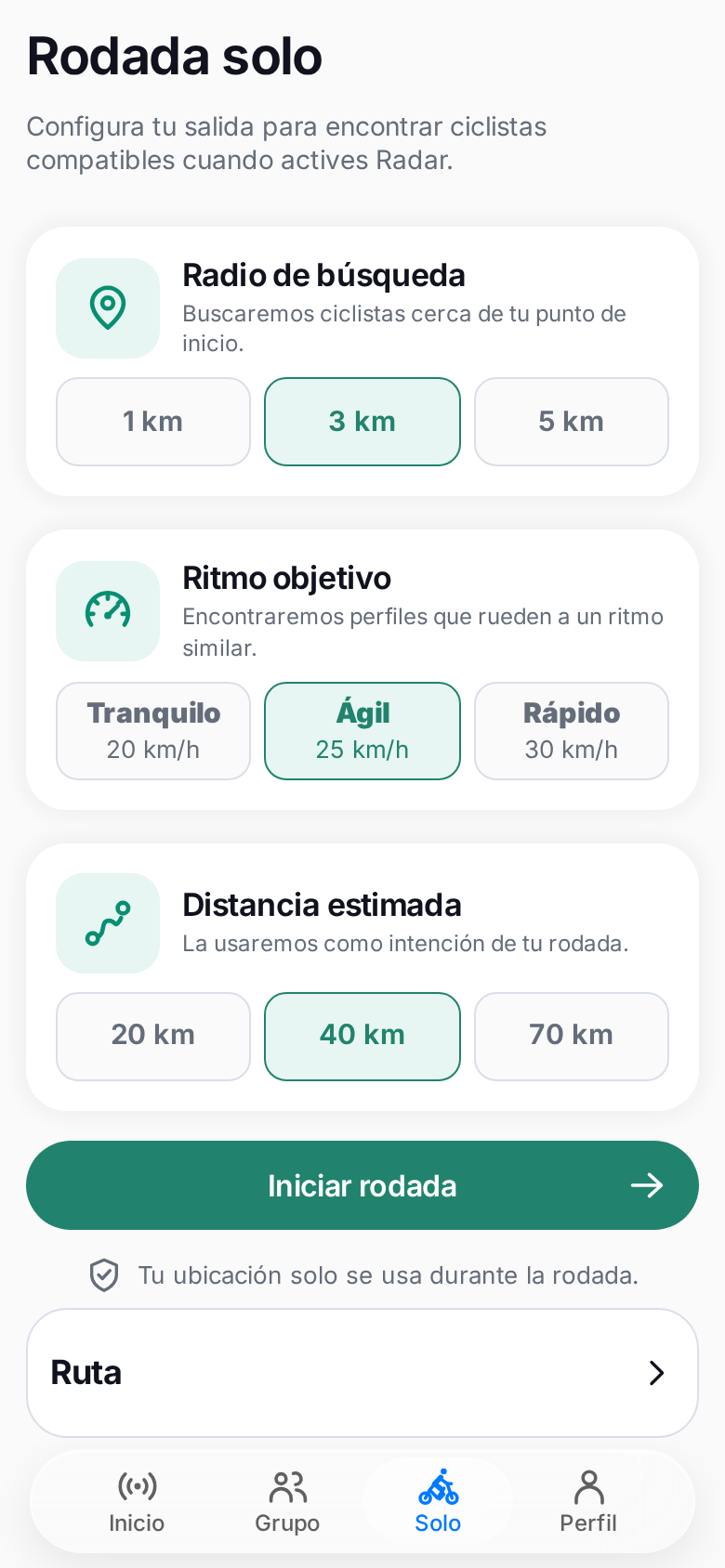
- If you want to search for cyclists, set Search radius, Target pace and Estimated distance. These preferences help search when you turn on Radar; you can pedal without looking for anyone.
- Press Start bike ride and wait for the location. The bike ride starts with Share Radar off.
- To appear to nearby cyclists, activate Share Radar. Only an approximate distance and direction reference is published. Change the radius to broaden or narrow the search.
If you want to receive requests to ride together, activate Open to pedaling? after Share Radar. This option appears during the bike ride Only with Radar active. You can turn off Radar at any time; At the end of the bike ride, visibility ends.
7. Create, join and pedal In a group
Create and manage
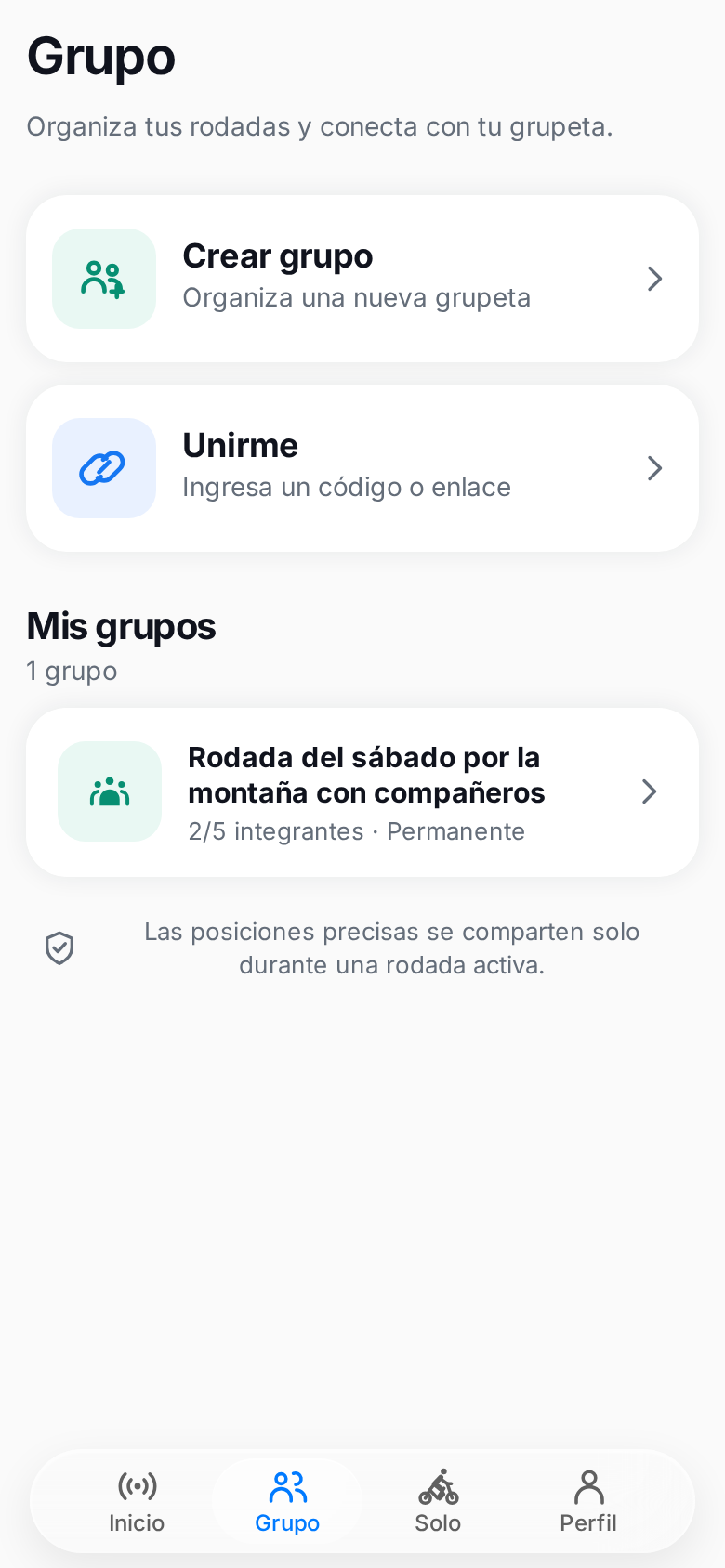
- Open Group → Create, type a name and press Create group. New groups are saved for future bike rides.
- In the group detail, use Invite cyclists to copy the six-character code or generate and copy a link. Whoever receives it must request access; The leader accepts or rejects the request.
- Choose Your color on the map. The leader can open Edit group to change the name, manage members or delete the group.
- When you're ready, press Start bike ride in the group detail.
Join a cycling group
Open Group → Join, write the code and press Request access; You can also open the link received. Wait for the leader's approval. The group will appear in Saved groups when applicable. A member can leave from the detail with Leave the group.
During the group bike ride, the map and telemetry show authorized members with a current signal. Tap a rider's marker to see their details and options. The camera returns to frame the cycling group after exploring the map.
8. Check the bike ride and take a break
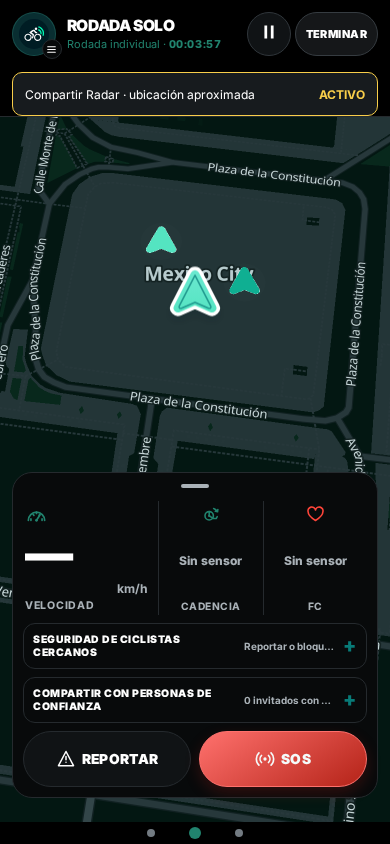
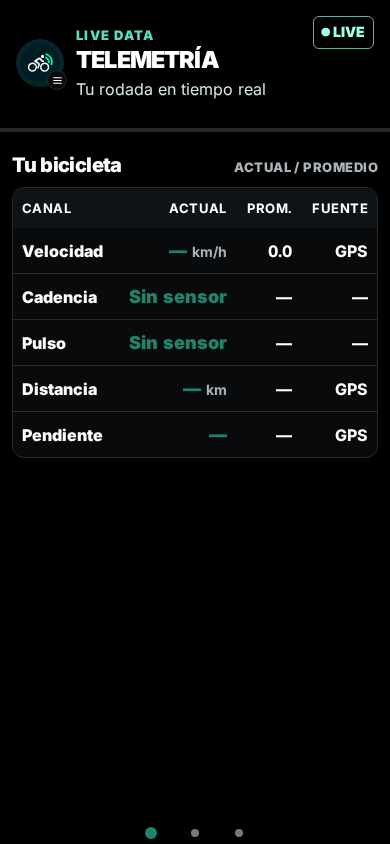
The bike ride has three pages: Telemetry, Map and Data. Use the bottom three dots or swipe horizontally to change. On the map, tap an empty area or the panel bar to show or hide the HUD. You can drag and zoom with the usual gestures.
Telemetry shows live readings and, in groups, the situation of the members. Data shows speed, distance, cadence, pulse, slope and averages when there is sufficient data. A dash indicates that there is no reliable reading; does not equal zero.
The app can activate Auto pause when it detects an arrest. To pause yourself, tap the pause control on the header; you will see manual pause. Touch it again to Resume bike ride. During the pause, moving time is frozen, but the bike ride is still active and location sharing can continue. Use Finish to close it.
9. Dangers, SOS and voice
In Report You can create a danger warning and review nearby reports. Another rider must confirm this before it generates a voice prompt. Use Confirm if it is still present or It is not to remove it; your active reports have Withdraw. A rider's options allow them to report or block their account; locks are managed in Profile.
On a group bike ride, SOS requires holding the control down for three seconds. Notify authorized members and share your precise location with them while it is active. Use Solve SOS upon finishing. SOS does not automatically call emergencies; If you need immediate help, contact local services by normal means.
If voice is enabled for your app, press and hold speak to ask for a turn and release to turn off the microphone. The status indicates whether another person is speaking or if the audio is reconnected. On the group map, the prompt control toggles All, Reviews and Silence: Change the alert voice, not the visual alerts or the conversation channel. In native apps you can continue listening during your bike ride with the screen locked, subject to device permissions and restrictions; speaking from the app requires it to be visible. The optional wired headphone trial on iOS is explained on-screen when available.
10. Finish and save your activity
- Press Finish in the header and wait for confirmation. The temporary presence of cycling stops being shared.
- Search Last bike ride and press Download FIT to save the file to your device.
- If you have not connected Strava, import this file manually into the training service you prefer.
If you connect Strava in Profile, Manage account, new rides with a FIT file will upload automatically when you finish or reconnect. Older and imported FIT files are not uploaded automatically. You can check the latest upload status in Account and download the FIT if it needs review.
Export the FIT before starting another ride or clearing app data. The file contains the available data: a weak GPS signal or disconnected sensor can leave metrics incomplete. On Android and iOS, background recording depends on permissions and system restrictions; check it on your device.
11. If something goes wrong
- Without map or without kilometers: Check location permission, GPS signal and status of the bike ride. Expect a first point outdoors.
- Sensor without readings: wake it up, check Bluetooth, test Reconnect and check that another device is not using it.
- Cyclists do not appear: Check that Share Radar is active, expand the radius and remember that only those who chose to share their approximate presence appear.
- No audio: check permissions, volume, connection and status speak or alert mode. Availability depends on app settings and permissions.
To report a problem, use Support. Indicates version, platform, steps to play it and the message displayed. Do not send passwords, tokens or your exact location. Consult the release notes for known changes and limits.
Return to the beginning of the manual ↑ · Download GrupetApp